> ## Documentation Index
> Fetch the complete documentation index at: https://docs-staging-feat-docs-5607-tenant-acl.mintlify.site/llms.txt
> Use this file to discover all available pages before exploring further.

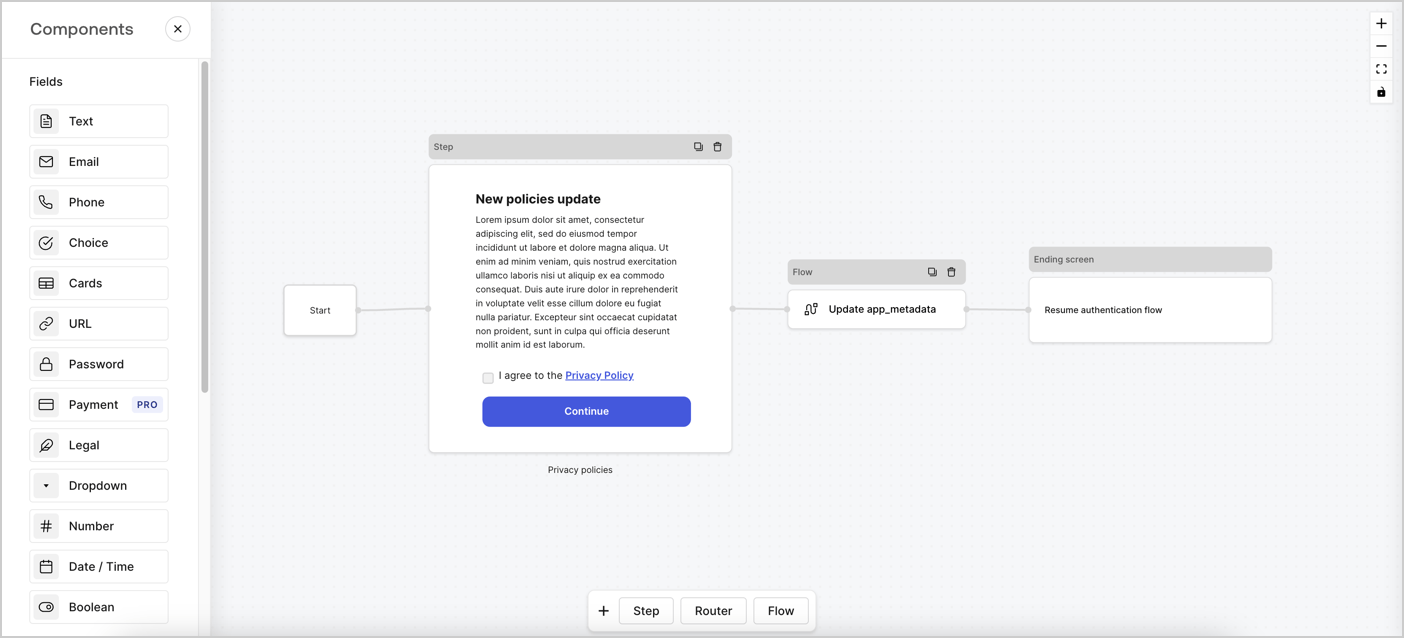
> Learn how to configure an update policy form using Forms for Actions for users to review and accept new terms of service or consent updates.

# Use Cases: Configure an update policy form using Forms

<Card title="Before you start">
  1. Create a [Machine-to-Machine Application](/docs/get-started/auth0-overview/create-applications/machine-to-machine-apps) with the following scopes enabled:

  * `read:users`
  * `update:users`
  * `create:users`
  * `read:users_app_metadata`
  * `update:users_app_metadata`
  * `create:users_app_metadata`

  2. Add a [Vault connection](/docs/customize/forms/vault) using the M2M application credentials.
</Card>

Forms for Actions allows you to create custom privacy policies flows and store the consent under the `app_metadata` object.
<Frame>
  <img src="https://mintcdn.com/docs-staging-feat-docs-5607-tenant-acl/LrEvmuP5Gmo5_25F/docs/images/cdy7uua7fh8z/6i68dMvHDTijfRmSgN1x8Q/ad900e7d4c0fb34645921435472b8684/privavy-policy-form.png?fit=max&auto=format&n=LrEvmuP5Gmo5_25F&q=85&s=20185d8571f241424b84e0ed5f098f4d" alt="Dashboard > Actions > Forms > Privacy policy use case" data-og-width="1404" width="1404" data-og-height="638" height="638" data-path="docs/images/cdy7uua7fh8z/6i68dMvHDTijfRmSgN1x8Q/ad900e7d4c0fb34645921435472b8684/privavy-policy-form.png" data-optimize="true" data-opv="3" srcset="https://mintcdn.com/docs-staging-feat-docs-5607-tenant-acl/LrEvmuP5Gmo5_25F/docs/images/cdy7uua7fh8z/6i68dMvHDTijfRmSgN1x8Q/ad900e7d4c0fb34645921435472b8684/privavy-policy-form.png?w=280&fit=max&auto=format&n=LrEvmuP5Gmo5_25F&q=85&s=d5e844dd48eee28963bde9d80f4e69a6 280w, https://mintcdn.com/docs-staging-feat-docs-5607-tenant-acl/LrEvmuP5Gmo5_25F/docs/images/cdy7uua7fh8z/6i68dMvHDTijfRmSgN1x8Q/ad900e7d4c0fb34645921435472b8684/privavy-policy-form.png?w=560&fit=max&auto=format&n=LrEvmuP5Gmo5_25F&q=85&s=87b7a526b46fcca9201850d5701e535a 560w, https://mintcdn.com/docs-staging-feat-docs-5607-tenant-acl/LrEvmuP5Gmo5_25F/docs/images/cdy7uua7fh8z/6i68dMvHDTijfRmSgN1x8Q/ad900e7d4c0fb34645921435472b8684/privavy-policy-form.png?w=840&fit=max&auto=format&n=LrEvmuP5Gmo5_25F&q=85&s=d2b4e2e5cfbe85d0142f8f3989a76487 840w, https://mintcdn.com/docs-staging-feat-docs-5607-tenant-acl/LrEvmuP5Gmo5_25F/docs/images/cdy7uua7fh8z/6i68dMvHDTijfRmSgN1x8Q/ad900e7d4c0fb34645921435472b8684/privavy-policy-form.png?w=1100&fit=max&auto=format&n=LrEvmuP5Gmo5_25F&q=85&s=5971c040ca39b5552144ea188cb2857b 1100w, https://mintcdn.com/docs-staging-feat-docs-5607-tenant-acl/LrEvmuP5Gmo5_25F/docs/images/cdy7uua7fh8z/6i68dMvHDTijfRmSgN1x8Q/ad900e7d4c0fb34645921435472b8684/privavy-policy-form.png?w=1650&fit=max&auto=format&n=LrEvmuP5Gmo5_25F&q=85&s=254e7e7c73de5c7e489702bec1148350 1650w, https://mintcdn.com/docs-staging-feat-docs-5607-tenant-acl/LrEvmuP5Gmo5_25F/docs/images/cdy7uua7fh8z/6i68dMvHDTijfRmSgN1x8Q/ad900e7d4c0fb34645921435472b8684/privavy-policy-form.png?w=2500&fit=max&auto=format&n=LrEvmuP5Gmo5_25F&q=85&s=73a87ace79e227434dbbf9e7ff966a39 2500w" />
</Frame>

The sections below outline how you can create an Update Policy form using nodes and flows, along with steps for adding your form to a [Post Login](/docs/customize/actions/explore-triggers/signup-and-login-triggers/login-trigger) Action.

## Create a form from scratch

Follow these steps to create a form to gather information:

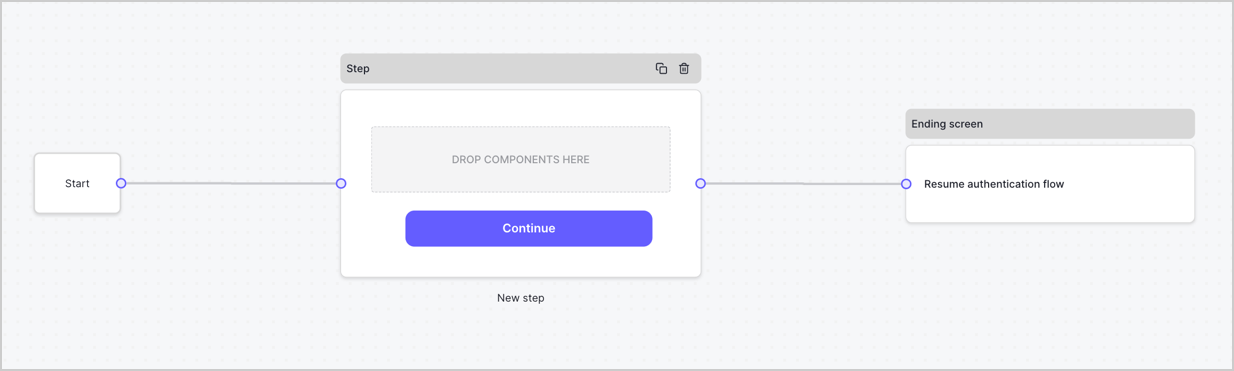
1. Open the Form editor by selecting **Auth0 Dashboard > Actions > Forms.**
2. Select **Create Form** > **Start from scratch**.

By default, a new form contains a Start node, a Step node, and an Ending screen node.
<Frame>
  <img src="https://mintcdn.com/docs-staging-feat-docs-5607-tenant-acl/_isgoSMXIce34XR9/docs/images/cdy7uua7fh8z/2TZ9jSjgEcARFpULI6hz4R/a4319a1bd482f2ee5cc23100fdb2f42c/New-form-Forms-for-action-use-case.png?fit=max&auto=format&n=_isgoSMXIce34XR9&q=85&s=df79ca207e3e830cfd586a9b92372666" alt="Dashboard > Forms > Use Cases > Form" data-og-width="1234" width="1234" data-og-height="371" height="371" data-path="docs/images/cdy7uua7fh8z/2TZ9jSjgEcARFpULI6hz4R/a4319a1bd482f2ee5cc23100fdb2f42c/New-form-Forms-for-action-use-case.png" data-optimize="true" data-opv="3" srcset="https://mintcdn.com/docs-staging-feat-docs-5607-tenant-acl/_isgoSMXIce34XR9/docs/images/cdy7uua7fh8z/2TZ9jSjgEcARFpULI6hz4R/a4319a1bd482f2ee5cc23100fdb2f42c/New-form-Forms-for-action-use-case.png?w=280&fit=max&auto=format&n=_isgoSMXIce34XR9&q=85&s=e82472b952669a341864a43fdf983a98 280w, https://mintcdn.com/docs-staging-feat-docs-5607-tenant-acl/_isgoSMXIce34XR9/docs/images/cdy7uua7fh8z/2TZ9jSjgEcARFpULI6hz4R/a4319a1bd482f2ee5cc23100fdb2f42c/New-form-Forms-for-action-use-case.png?w=560&fit=max&auto=format&n=_isgoSMXIce34XR9&q=85&s=088277067ef562ee69e24280fc2b9ba1 560w, https://mintcdn.com/docs-staging-feat-docs-5607-tenant-acl/_isgoSMXIce34XR9/docs/images/cdy7uua7fh8z/2TZ9jSjgEcARFpULI6hz4R/a4319a1bd482f2ee5cc23100fdb2f42c/New-form-Forms-for-action-use-case.png?w=840&fit=max&auto=format&n=_isgoSMXIce34XR9&q=85&s=9a8e534009fcca11bb40b01f781fb237 840w, https://mintcdn.com/docs-staging-feat-docs-5607-tenant-acl/_isgoSMXIce34XR9/docs/images/cdy7uua7fh8z/2TZ9jSjgEcARFpULI6hz4R/a4319a1bd482f2ee5cc23100fdb2f42c/New-form-Forms-for-action-use-case.png?w=1100&fit=max&auto=format&n=_isgoSMXIce34XR9&q=85&s=794cf95dbb5685cc8aaa3248d6cb9046 1100w, https://mintcdn.com/docs-staging-feat-docs-5607-tenant-acl/_isgoSMXIce34XR9/docs/images/cdy7uua7fh8z/2TZ9jSjgEcARFpULI6hz4R/a4319a1bd482f2ee5cc23100fdb2f42c/New-form-Forms-for-action-use-case.png?w=1650&fit=max&auto=format&n=_isgoSMXIce34XR9&q=85&s=263673d245a9959e516cfcca95efa018 1650w, https://mintcdn.com/docs-staging-feat-docs-5607-tenant-acl/_isgoSMXIce34XR9/docs/images/cdy7uua7fh8z/2TZ9jSjgEcARFpULI6hz4R/a4319a1bd482f2ee5cc23100fdb2f42c/New-form-Forms-for-action-use-case.png?w=2500&fit=max&auto=format&n=_isgoSMXIce34XR9&q=85&s=cc2774215c029d17fc5d3de3484c4ec4 2500w" />
</Frame>

### Configure the Step node

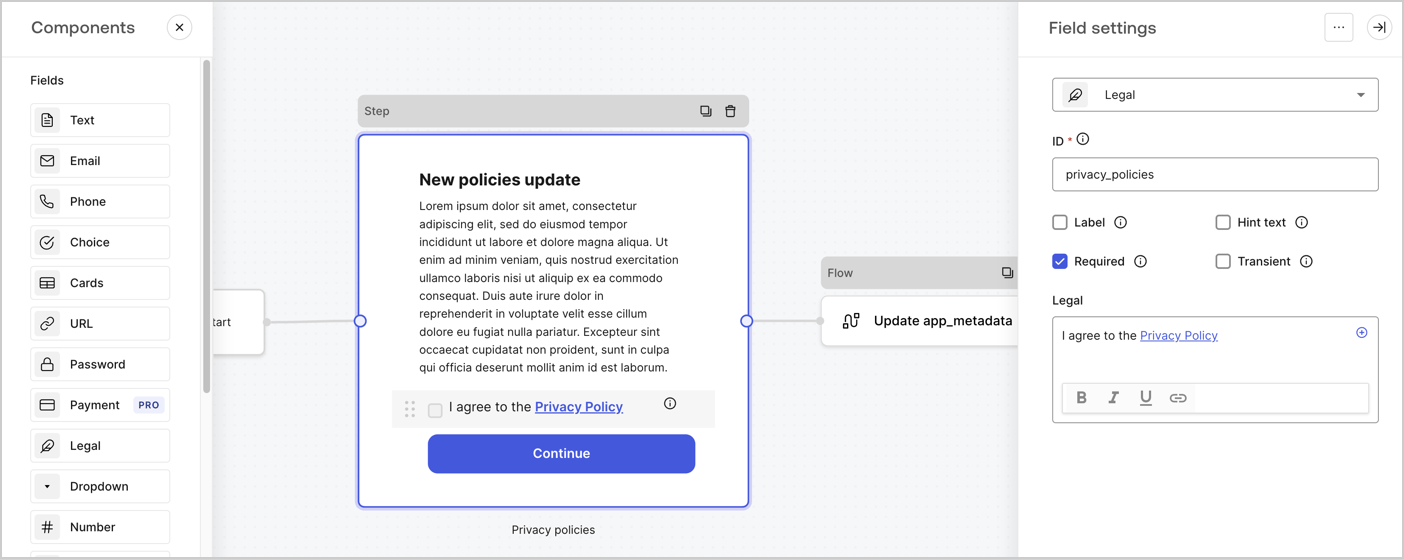
The Step node is the graphical interface visible to users. Add [Fields](/docs/customize/forms/nodes-and-components) to the Step node to collect the new agreement acceptance value by following these steps:

1. Drag a **Rich text** field from the **Components menu** into the **Step** node.

   * **Rich text**: Enter a description of your privacy policies updates.
   * Select **Save**.
2. Drag a **Legal** field into the **Step** node.

   * **ID**: Enter `privacy_policies`.
   * **Required**: Enable the checkbox.
   * **Legal**: Enter `I agree to the Privacy Policy`.
   * Select **Save**.
3. Select **Publish** to save.
<Frame>
  <img src="https://mintcdn.com/docs-staging-feat-docs-5607-tenant-acl/eZb2t6vSGXSgiRBW/docs/images/cdy7uua7fh8z/59zFFjQjAnjogkc2QGIqqJ/0ad66b1b636544122aa4e65968b76c2c/privacy-policy-step-node.png?fit=max&auto=format&n=eZb2t6vSGXSgiRBW&q=85&s=e55debf4ae046c503323962ac16bd28d" alt="Dashboard > Actions > Forms > Use case privacy policy step node" data-og-width="1404" width="1404" data-og-height="559" height="559" data-path="docs/images/cdy7uua7fh8z/59zFFjQjAnjogkc2QGIqqJ/0ad66b1b636544122aa4e65968b76c2c/privacy-policy-step-node.png" data-optimize="true" data-opv="3" srcset="https://mintcdn.com/docs-staging-feat-docs-5607-tenant-acl/eZb2t6vSGXSgiRBW/docs/images/cdy7uua7fh8z/59zFFjQjAnjogkc2QGIqqJ/0ad66b1b636544122aa4e65968b76c2c/privacy-policy-step-node.png?w=280&fit=max&auto=format&n=eZb2t6vSGXSgiRBW&q=85&s=5e4b4dcb56089e6d910913b3c274ea96 280w, https://mintcdn.com/docs-staging-feat-docs-5607-tenant-acl/eZb2t6vSGXSgiRBW/docs/images/cdy7uua7fh8z/59zFFjQjAnjogkc2QGIqqJ/0ad66b1b636544122aa4e65968b76c2c/privacy-policy-step-node.png?w=560&fit=max&auto=format&n=eZb2t6vSGXSgiRBW&q=85&s=aee91061db5ed994eae9cb090d39e21c 560w, https://mintcdn.com/docs-staging-feat-docs-5607-tenant-acl/eZb2t6vSGXSgiRBW/docs/images/cdy7uua7fh8z/59zFFjQjAnjogkc2QGIqqJ/0ad66b1b636544122aa4e65968b76c2c/privacy-policy-step-node.png?w=840&fit=max&auto=format&n=eZb2t6vSGXSgiRBW&q=85&s=62a1d064ebfc18ce6cdc498f4ca8d41a 840w, https://mintcdn.com/docs-staging-feat-docs-5607-tenant-acl/eZb2t6vSGXSgiRBW/docs/images/cdy7uua7fh8z/59zFFjQjAnjogkc2QGIqqJ/0ad66b1b636544122aa4e65968b76c2c/privacy-policy-step-node.png?w=1100&fit=max&auto=format&n=eZb2t6vSGXSgiRBW&q=85&s=7f00e1035b548def321f1baded318496 1100w, https://mintcdn.com/docs-staging-feat-docs-5607-tenant-acl/eZb2t6vSGXSgiRBW/docs/images/cdy7uua7fh8z/59zFFjQjAnjogkc2QGIqqJ/0ad66b1b636544122aa4e65968b76c2c/privacy-policy-step-node.png?w=1650&fit=max&auto=format&n=eZb2t6vSGXSgiRBW&q=85&s=84e964d72688560a91b0797bf153f2b0 1650w, https://mintcdn.com/docs-staging-feat-docs-5607-tenant-acl/eZb2t6vSGXSgiRBW/docs/images/cdy7uua7fh8z/59zFFjQjAnjogkc2QGIqqJ/0ad66b1b636544122aa4e65968b76c2c/privacy-policy-step-node.png?w=2500&fit=max&auto=format&n=eZb2t6vSGXSgiRBW&q=85&s=f1b0f7fc043fa8a4d3db59ccf0121148 2500w" />
</Frame>

### Configure the Flow node

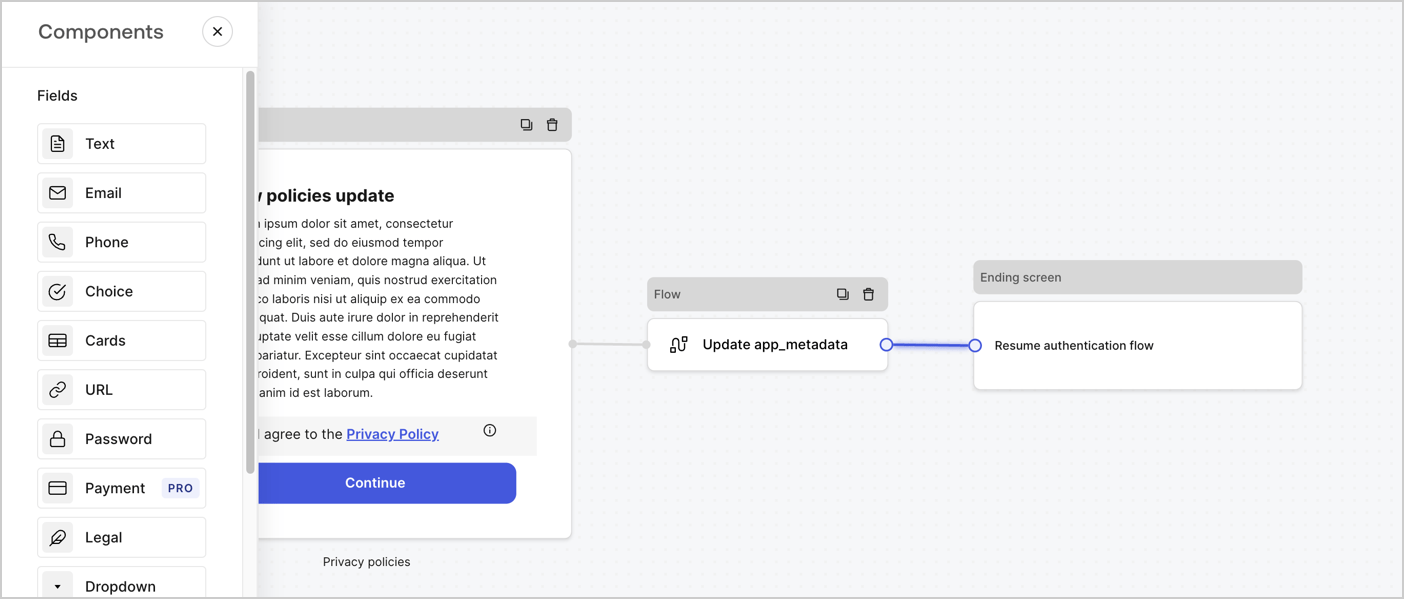
Add a **Flow** node after the **Step** node to update the `app_metadata` and resume the authentication flow by following these steps:

1. Select **Flow** from the bottom of the Form editor.
2. Remove the existing link between the **Step** and **Ending Screen** nodes.
3. Select the new **Flow** > **Click to add a flow** > **Create a new flow.**

   * Enter `Update app_metadata` in the **Name** field.
   * Select **Create**.
   * Select **Save**.
4. Link the **Flow** node to the **Step** and **Ending Screen** nodes as pictured below.
5. Select **Publish** to save.
<Frame>
  <img src="https://mintcdn.com/docs-staging-feat-docs-5607-tenant-acl/LrEvmuP5Gmo5_25F/docs/images/cdy7uua7fh8z/6YIkzm7SrpM9LW76AXuRzh/353c518fe82bbaa440836da1d83596d6/link-policies.png?fit=max&auto=format&n=LrEvmuP5Gmo5_25F&q=85&s=39518300557a2a0b8d047ac2807c592d" alt="Dashboard > Actions > Forms > Form" data-og-width="1404" width="1404" data-og-height="599" height="599" data-path="docs/images/cdy7uua7fh8z/6YIkzm7SrpM9LW76AXuRzh/353c518fe82bbaa440836da1d83596d6/link-policies.png" data-optimize="true" data-opv="3" srcset="https://mintcdn.com/docs-staging-feat-docs-5607-tenant-acl/LrEvmuP5Gmo5_25F/docs/images/cdy7uua7fh8z/6YIkzm7SrpM9LW76AXuRzh/353c518fe82bbaa440836da1d83596d6/link-policies.png?w=280&fit=max&auto=format&n=LrEvmuP5Gmo5_25F&q=85&s=c86ee16a2573f5e109985641ec11fbdd 280w, https://mintcdn.com/docs-staging-feat-docs-5607-tenant-acl/LrEvmuP5Gmo5_25F/docs/images/cdy7uua7fh8z/6YIkzm7SrpM9LW76AXuRzh/353c518fe82bbaa440836da1d83596d6/link-policies.png?w=560&fit=max&auto=format&n=LrEvmuP5Gmo5_25F&q=85&s=c6a7cd2909f3a30cbdc836f56331031c 560w, https://mintcdn.com/docs-staging-feat-docs-5607-tenant-acl/LrEvmuP5Gmo5_25F/docs/images/cdy7uua7fh8z/6YIkzm7SrpM9LW76AXuRzh/353c518fe82bbaa440836da1d83596d6/link-policies.png?w=840&fit=max&auto=format&n=LrEvmuP5Gmo5_25F&q=85&s=c982a7f34ae45901d84ef8aeb741d89e 840w, https://mintcdn.com/docs-staging-feat-docs-5607-tenant-acl/LrEvmuP5Gmo5_25F/docs/images/cdy7uua7fh8z/6YIkzm7SrpM9LW76AXuRzh/353c518fe82bbaa440836da1d83596d6/link-policies.png?w=1100&fit=max&auto=format&n=LrEvmuP5Gmo5_25F&q=85&s=92a4f37e6df73b3ea83c5b690a2fc83d 1100w, https://mintcdn.com/docs-staging-feat-docs-5607-tenant-acl/LrEvmuP5Gmo5_25F/docs/images/cdy7uua7fh8z/6YIkzm7SrpM9LW76AXuRzh/353c518fe82bbaa440836da1d83596d6/link-policies.png?w=1650&fit=max&auto=format&n=LrEvmuP5Gmo5_25F&q=85&s=f5238e8acd72acdaf965914926e29eae 1650w, https://mintcdn.com/docs-staging-feat-docs-5607-tenant-acl/LrEvmuP5Gmo5_25F/docs/images/cdy7uua7fh8z/6YIkzm7SrpM9LW76AXuRzh/353c518fe82bbaa440836da1d83596d6/link-policies.png?w=2500&fit=max&auto=format&n=LrEvmuP5Gmo5_25F&q=85&s=9cafb9647a6613e4b5f4cc570c57fde4 2500w" />
</Frame>

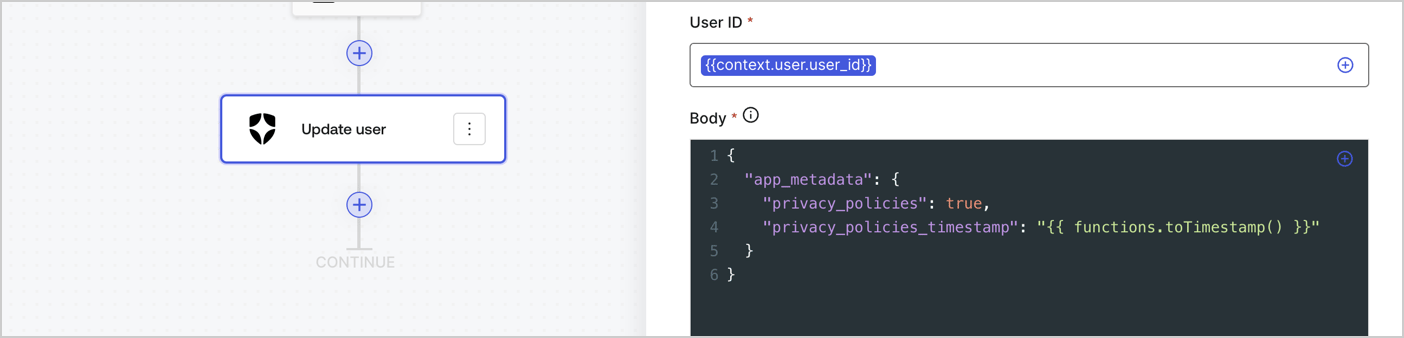
Add an Auth0 Update user action to the flow by following these steps:

1. Select the **Flow** **Update app\_metadata** > **Edit flow** to open the Flow editor in a new tab.
2. Below the StartAction, select the **+** icon to add an **Update user** action. Complete the fields below, then select **Save** to continue.

   * **Connection**: Select from the dropdown the Vault connection to your M2M application.

   * **User ID**: Enter `{{context.user.user_id}}`.

   * **Body**: Copy and paste the following code to update the app\_metadata with the privacy\_policies and privacy\_policies\_timestamp properties.

     ```text lines theme={null}
     {
       "app_metadata": {
         "privacy_policies": true,
         "privacy_policies_timestamp": "{{ functions.toTimestamp() }}"
       }
     }
     ```

   * Select **Save**.
3. Select **Publish** to save.
<Frame>
  <img src="https://mintcdn.com/docs-staging-feat-docs-5607-tenant-acl/Hxd0xzw46Jf0QW9S/docs/images/cdy7uua7fh8z/CvMNIwWrOUwaFW4X3G28p/1fb70ae57a20749d9ffaaba8dc0b7e26/update-user-privacy.png?fit=max&auto=format&n=Hxd0xzw46Jf0QW9S&q=85&s=68b61573f637997e4f779fad3d960c88" alt="Dashboard > Actions > Forms > User case privacy policy code" data-og-width="1404" width="1404" data-og-height="338" height="338" data-path="docs/images/cdy7uua7fh8z/CvMNIwWrOUwaFW4X3G28p/1fb70ae57a20749d9ffaaba8dc0b7e26/update-user-privacy.png" data-optimize="true" data-opv="3" srcset="https://mintcdn.com/docs-staging-feat-docs-5607-tenant-acl/Hxd0xzw46Jf0QW9S/docs/images/cdy7uua7fh8z/CvMNIwWrOUwaFW4X3G28p/1fb70ae57a20749d9ffaaba8dc0b7e26/update-user-privacy.png?w=280&fit=max&auto=format&n=Hxd0xzw46Jf0QW9S&q=85&s=530b14b973cd6646d819fbfc718a88b2 280w, https://mintcdn.com/docs-staging-feat-docs-5607-tenant-acl/Hxd0xzw46Jf0QW9S/docs/images/cdy7uua7fh8z/CvMNIwWrOUwaFW4X3G28p/1fb70ae57a20749d9ffaaba8dc0b7e26/update-user-privacy.png?w=560&fit=max&auto=format&n=Hxd0xzw46Jf0QW9S&q=85&s=1e1f9229ae73f26eb99f1992115566ca 560w, https://mintcdn.com/docs-staging-feat-docs-5607-tenant-acl/Hxd0xzw46Jf0QW9S/docs/images/cdy7uua7fh8z/CvMNIwWrOUwaFW4X3G28p/1fb70ae57a20749d9ffaaba8dc0b7e26/update-user-privacy.png?w=840&fit=max&auto=format&n=Hxd0xzw46Jf0QW9S&q=85&s=b5e26f8ddd2ba2fd97d07da6d00ee646 840w, https://mintcdn.com/docs-staging-feat-docs-5607-tenant-acl/Hxd0xzw46Jf0QW9S/docs/images/cdy7uua7fh8z/CvMNIwWrOUwaFW4X3G28p/1fb70ae57a20749d9ffaaba8dc0b7e26/update-user-privacy.png?w=1100&fit=max&auto=format&n=Hxd0xzw46Jf0QW9S&q=85&s=fc7ace7c6663aa2a58683f0c27b10b8b 1100w, https://mintcdn.com/docs-staging-feat-docs-5607-tenant-acl/Hxd0xzw46Jf0QW9S/docs/images/cdy7uua7fh8z/CvMNIwWrOUwaFW4X3G28p/1fb70ae57a20749d9ffaaba8dc0b7e26/update-user-privacy.png?w=1650&fit=max&auto=format&n=Hxd0xzw46Jf0QW9S&q=85&s=38fadaa18aa2dbde3e8b728896097d41 1650w, https://mintcdn.com/docs-staging-feat-docs-5607-tenant-acl/Hxd0xzw46Jf0QW9S/docs/images/cdy7uua7fh8z/CvMNIwWrOUwaFW4X3G28p/1fb70ae57a20749d9ffaaba8dc0b7e26/update-user-privacy.png?w=2500&fit=max&auto=format&n=Hxd0xzw46Jf0QW9S&q=85&s=c989e442f7535654eab82f4e5b8d26b9 2500w" />
</Frame>

<Callout icon="file-lines" color="#0EA5E9" iconType="regular">
  The flow **Update app\_metadata** adds a `privacy_policies true` value to the app`_metadata` object and also generates a timestamp with a [helper function.](/docs/customize/forms/variables)
</Callout>

## Retrieve the form render code

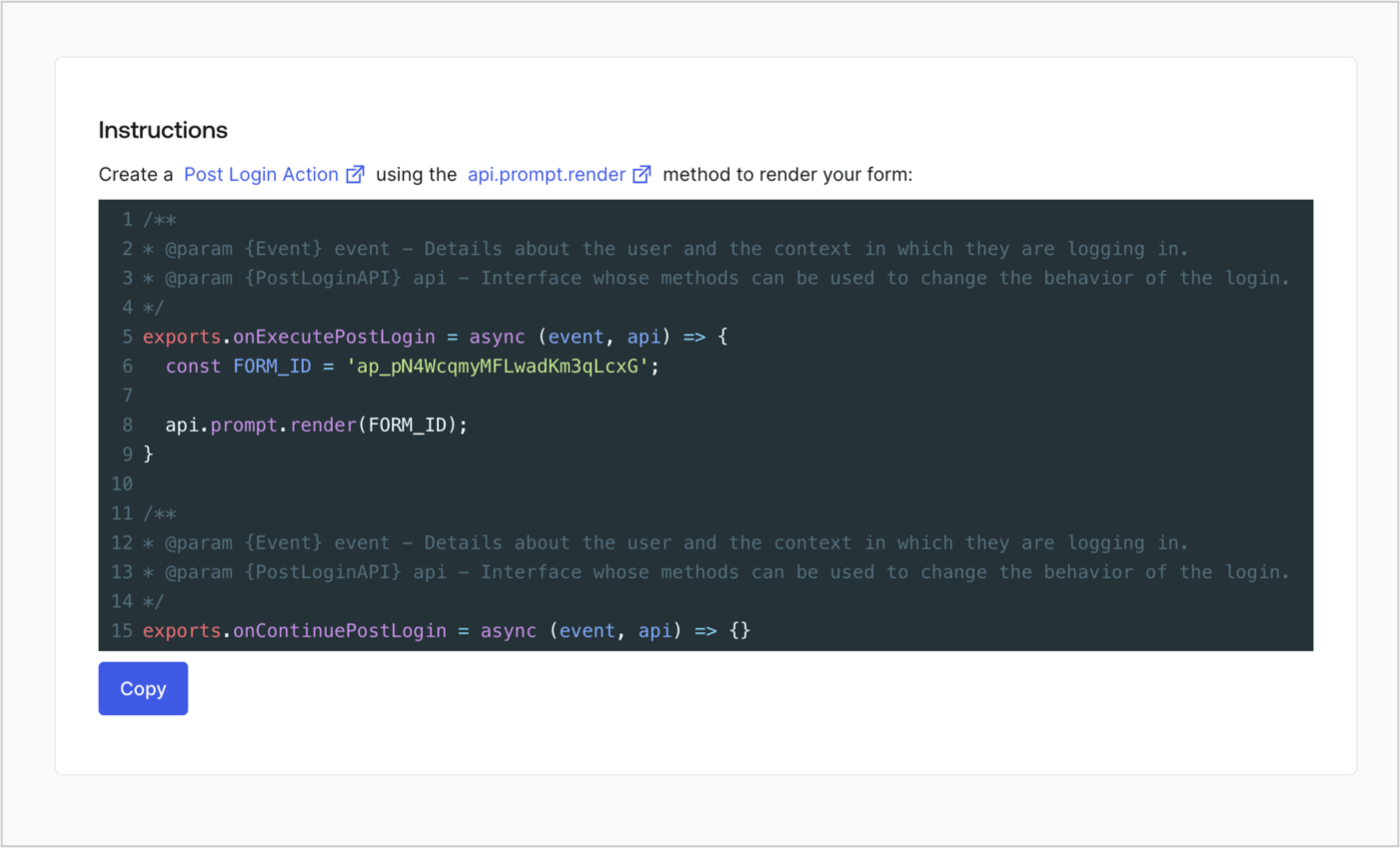
Retrieve your form render code to visually render the form with a custom Post Login Action by following these steps:

* From the Form editor, select **`<> Render`**.
* Select **Copy**.
<Frame>
  <img src="https://mintcdn.com/docs-staging-feat-docs-5607-tenant-acl/pSsYZOmPU6VTbo0s/docs/images/cdy7uua7fh8z/2EIUzc539sq9lwoTKbjoJv/496a864c0fc44a782c9cadca119dbfb0/embed.png?fit=max&auto=format&n=pSsYZOmPU6VTbo0s&q=85&s=7c60fe28ebefe433f90a029f6c89bc81" alt="Dashboard > Actions > Forms > Form > Embed" data-og-width="1400" width="1400" data-og-height="848" height="848" data-path="docs/images/cdy7uua7fh8z/2EIUzc539sq9lwoTKbjoJv/496a864c0fc44a782c9cadca119dbfb0/embed.png" data-optimize="true" data-opv="3" srcset="https://mintcdn.com/docs-staging-feat-docs-5607-tenant-acl/pSsYZOmPU6VTbo0s/docs/images/cdy7uua7fh8z/2EIUzc539sq9lwoTKbjoJv/496a864c0fc44a782c9cadca119dbfb0/embed.png?w=280&fit=max&auto=format&n=pSsYZOmPU6VTbo0s&q=85&s=79548fac38c516b154545cf47ca65212 280w, https://mintcdn.com/docs-staging-feat-docs-5607-tenant-acl/pSsYZOmPU6VTbo0s/docs/images/cdy7uua7fh8z/2EIUzc539sq9lwoTKbjoJv/496a864c0fc44a782c9cadca119dbfb0/embed.png?w=560&fit=max&auto=format&n=pSsYZOmPU6VTbo0s&q=85&s=182cb6541bc1559a83a53f91b94b903b 560w, https://mintcdn.com/docs-staging-feat-docs-5607-tenant-acl/pSsYZOmPU6VTbo0s/docs/images/cdy7uua7fh8z/2EIUzc539sq9lwoTKbjoJv/496a864c0fc44a782c9cadca119dbfb0/embed.png?w=840&fit=max&auto=format&n=pSsYZOmPU6VTbo0s&q=85&s=f97ca7b3826cb11c64e68b62c9259f5a 840w, https://mintcdn.com/docs-staging-feat-docs-5607-tenant-acl/pSsYZOmPU6VTbo0s/docs/images/cdy7uua7fh8z/2EIUzc539sq9lwoTKbjoJv/496a864c0fc44a782c9cadca119dbfb0/embed.png?w=1100&fit=max&auto=format&n=pSsYZOmPU6VTbo0s&q=85&s=8297b84273e059a28030efa30084c962 1100w, https://mintcdn.com/docs-staging-feat-docs-5607-tenant-acl/pSsYZOmPU6VTbo0s/docs/images/cdy7uua7fh8z/2EIUzc539sq9lwoTKbjoJv/496a864c0fc44a782c9cadca119dbfb0/embed.png?w=1650&fit=max&auto=format&n=pSsYZOmPU6VTbo0s&q=85&s=1297cf8d46699ac10ab1c460df98ceb4 1650w, https://mintcdn.com/docs-staging-feat-docs-5607-tenant-acl/pSsYZOmPU6VTbo0s/docs/images/cdy7uua7fh8z/2EIUzc539sq9lwoTKbjoJv/496a864c0fc44a782c9cadca119dbfb0/embed.png?w=2500&fit=max&auto=format&n=pSsYZOmPU6VTbo0s&q=85&s=ae0c92a5016f10d255d8cbcfbe6b4d90 2500w" />
</Frame>

## Create a Post Login Action

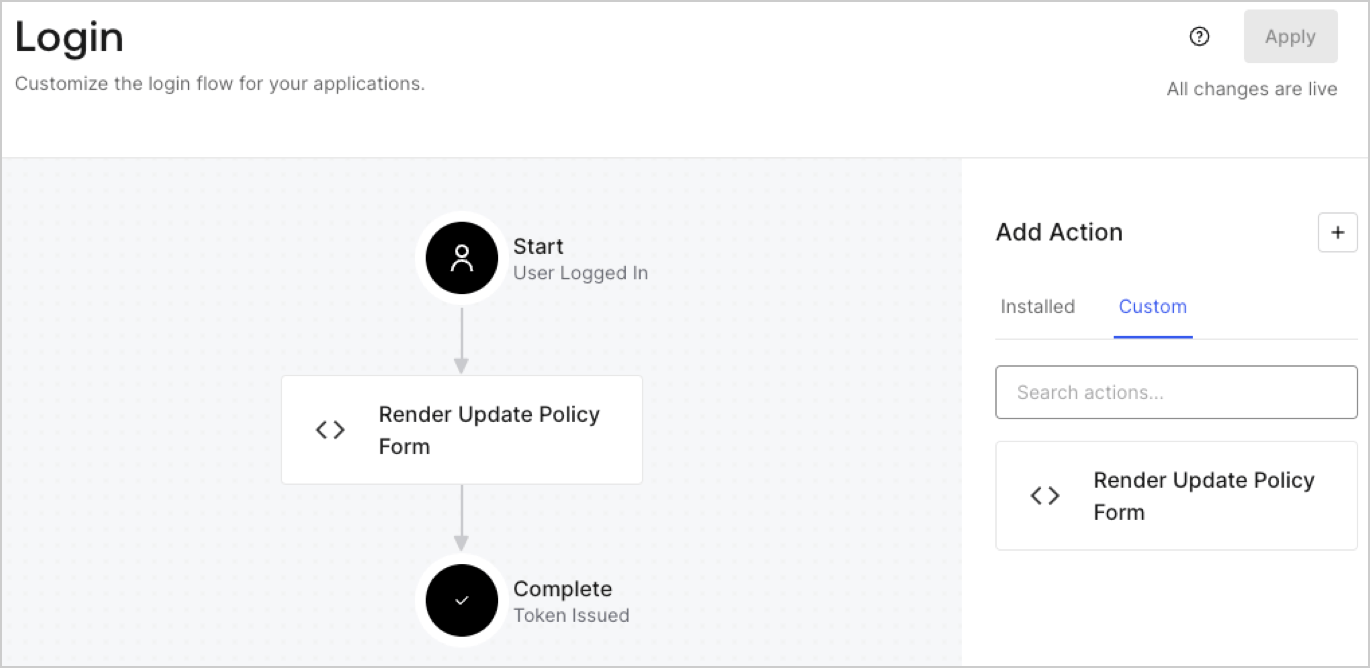
Create a post-login Action to render your form by following these steps:

1. Navigate to **Auth0 Dashboard > Actions > Flows > Login.**
2. Select the **+** icon and Select **Build from scratch**:

   * **Name**: Enter `Render Update Policy Form`.
   * **Trigger**: Select `Login / Post Login`.
   * **Runtime**: Select the recommended version.
3. Select **Create**.

To configure the post-login Action:

1. Delete the existing code from the Code editor.
2. Paste the form render code into the Code editor.
3. Edit the code to define the conditional logic that will render the form.

   ```javascript lines theme={null}
   /**
   * @param {Event} event - Details about the user and the context in which they are logging in.
   * @param {PostLoginAPI} api - Interface whose methods can be used to change the behavior of the login.
   */
   exports.onExecutePostLogin = async (event, api) => {
     const FORM_ID = 'REPLACE_WITH_YOUR_FORM_ID';

     if (event.user.app_metadata.privacy_policies !== true) {
       api.prompt.render(FORM_ID);
     }
   }

   exports.onContinuePostLogin = async (event, api) => { }
   ```

   <Callout icon="file-lines" color="#0EA5E9" iconType="regular">
     The example code above will render the form when a user is missing the app metadata `privacy_policies` property.
   </Callout>
4. Select **Deploy.**
5. Drag and Drop the **Render Update Policy Form** Action to the **Login** flow.
   <Frame>
     <img src="https://mintcdn.com/docs-staging-feat-docs-5607-tenant-acl/tZ65cFn9wvXb9yUm/docs/images/cdy7uua7fh8z/5TOwDgevZsBqd7yZynUYWU/41ca909dc3007aed4f40ff794a05efa5/postlogin.png?fit=max&auto=format&n=tZ65cFn9wvXb9yUm&q=85&s=5156e00e80ed5e266bc7f492d2e50f3e" alt="Dashboard > Forms > Use Case > Render update policy form login action" data-og-width="1370" width="1370" data-og-height="668" height="668" data-path="docs/images/cdy7uua7fh8z/5TOwDgevZsBqd7yZynUYWU/41ca909dc3007aed4f40ff794a05efa5/postlogin.png" data-optimize="true" data-opv="3" srcset="https://mintcdn.com/docs-staging-feat-docs-5607-tenant-acl/tZ65cFn9wvXb9yUm/docs/images/cdy7uua7fh8z/5TOwDgevZsBqd7yZynUYWU/41ca909dc3007aed4f40ff794a05efa5/postlogin.png?w=280&fit=max&auto=format&n=tZ65cFn9wvXb9yUm&q=85&s=9e608c322a1f524ff87aa3c8c852f440 280w, https://mintcdn.com/docs-staging-feat-docs-5607-tenant-acl/tZ65cFn9wvXb9yUm/docs/images/cdy7uua7fh8z/5TOwDgevZsBqd7yZynUYWU/41ca909dc3007aed4f40ff794a05efa5/postlogin.png?w=560&fit=max&auto=format&n=tZ65cFn9wvXb9yUm&q=85&s=a028b9d6cd4a46f86f2b78fcb2dd7341 560w, https://mintcdn.com/docs-staging-feat-docs-5607-tenant-acl/tZ65cFn9wvXb9yUm/docs/images/cdy7uua7fh8z/5TOwDgevZsBqd7yZynUYWU/41ca909dc3007aed4f40ff794a05efa5/postlogin.png?w=840&fit=max&auto=format&n=tZ65cFn9wvXb9yUm&q=85&s=d31c905d85b723fdc39685f0ce41c997 840w, https://mintcdn.com/docs-staging-feat-docs-5607-tenant-acl/tZ65cFn9wvXb9yUm/docs/images/cdy7uua7fh8z/5TOwDgevZsBqd7yZynUYWU/41ca909dc3007aed4f40ff794a05efa5/postlogin.png?w=1100&fit=max&auto=format&n=tZ65cFn9wvXb9yUm&q=85&s=75a3bef29f5ccb902c006b5f27df28d5 1100w, https://mintcdn.com/docs-staging-feat-docs-5607-tenant-acl/tZ65cFn9wvXb9yUm/docs/images/cdy7uua7fh8z/5TOwDgevZsBqd7yZynUYWU/41ca909dc3007aed4f40ff794a05efa5/postlogin.png?w=1650&fit=max&auto=format&n=tZ65cFn9wvXb9yUm&q=85&s=28172aa651eb23f3a174415b97f69232 1650w, https://mintcdn.com/docs-staging-feat-docs-5607-tenant-acl/tZ65cFn9wvXb9yUm/docs/images/cdy7uua7fh8z/5TOwDgevZsBqd7yZynUYWU/41ca909dc3007aed4f40ff794a05efa5/postlogin.png?w=2500&fit=max&auto=format&n=tZ65cFn9wvXb9yUm&q=85&s=66c7f970444db4abed399647a139fa86 2500w" />
   </Frame>
6. Select **Apply.**

### Test implementation

Test the implementation by following these steps:

1. Log in with an existing user whose app`_metadata` attribute `privacy_policies` does not have a value.
2. The post-login Action in the Login flow will render the form and prompt for acceptance.
3. Select **Auth0 Dashboard > User Management > Users,** locate the user and verify that the `app_metadata` attribute `privacy_policies` contains a `true` value and a timestamp.
